
AI Chatbot Conversations Archive: How to Save, Find, and Manage Chats
Ever spent 20 minutes searching for an AI conversation that took only two minutes to write? You’re not alone in […]
Read article →Finding one piece of information in a spreadsheet shouldn’t feel like searching for a needle in a digital haystack. Yet […]
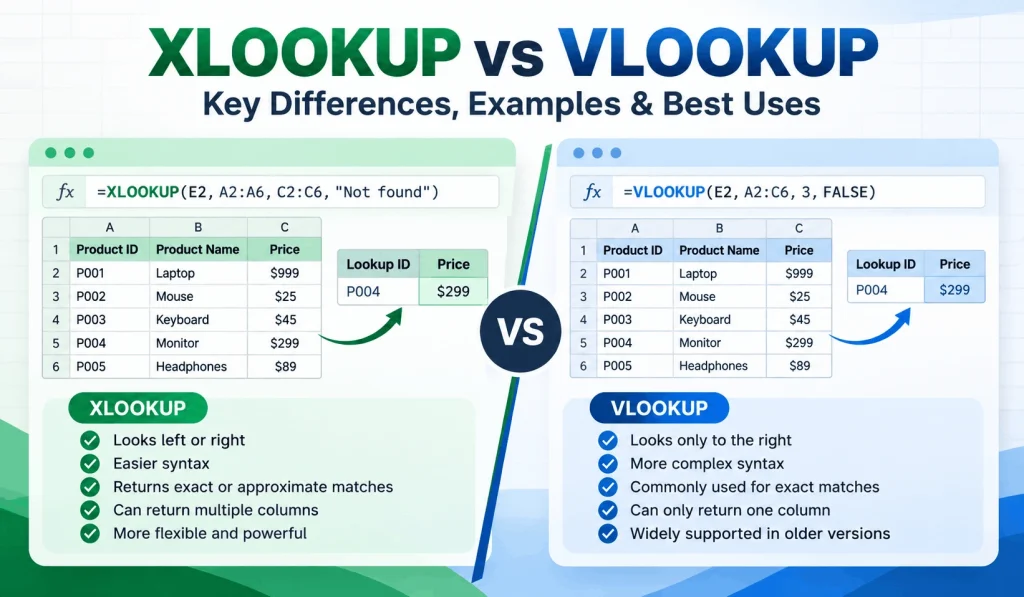
Finding one piece of information in a spreadsheet shouldn't feel like searching for a needle in a digital haystack. Yet anyone who has worked with a large Excel file knows how quickly a simple search can become frustrating.
That's where lookup functions help.
For years, VLOOKUP was the familiar choice for retrieving information from Excel tables. Whether you needed a product price, employee record, or customer ID, it could usually get the job done.
Then Microsoft introduced XLOOKUP, a function that addressed several limitations of its predecessor.
But does that mean VLOOKUP is outdated? Not necessarily.
Understanding XLOOKUP vs VLOOKUP helps you choose the right formula, avoid common spreadsheet errors, and manage data more confidently.
In this guide, we'll compare their features, explore real Excel examples, explain their limitations, and identify situations where each function makes the most sense.
XLOOKUP is generally better for modern Excel users because it supports searches in multiple directions, uses exact matching by default, handles missing values more conveniently, and can return multiple columns.
VLOOKUP remains useful for straightforward searches, established spreadsheets, and files that must work with older Excel versions.
The main differences involve search flexibility, formula structure, default matching behavior, error handling, and compatibility.
If you use Excel for Microsoft 365, Excel 2021, or Excel 2024, XLOOKUP is usually the more convenient choice for new workbooks.
However, people who regularly exchange spreadsheets with Excel 2016 or Excel 2019 users should understand VLOOKUP and INDEX-MATCH alternatives.
VLOOKUP stands for Vertical Lookup. It searches the first column of a selected table range and retrieves a corresponding value from another column in the same row.
Think of a retail store's inventory sheet.
The store maintains product IDs, names, prices, and quantities. Instead of manually searching the entire list whenever a customer asks about an item, the employee can enter a product ID and retrieve its price.
VLOOKUP makes that possible.
The function follows this structure:
=VLOOKUP(lookup_value,table_array,col_index_num,[range_lookup])
Here's what each argument means:
| Argument | Purpose |
|---|---|
| lookup_value | The value you want to find |
| table_array | The range containing the lookup and result data |
| col_index_num | The number of the return column within that range |
| range_lookup | FALSE for an exact match or TRUE for an approximate match |
The fourth argument is optional. If you omit it, Excel uses approximate matching.
For searches involving unique IDs, explicitly selecting FALSE helps prevent unintended results.
Suppose your worksheet contains this information:
| Product ID | Product Name | Price |
|---|---|---|
| P101 | Keyboard | $25 |
| P102 | Mouse | $15 |
| P103 | Monitor | $180 |
| P104 | Headphones | $45 |
Assume the table occupies cells A1.
You enter P103 into cell E2 and want Excel to return its price.
Use this formula:
=VLOOKUP(E2,A2:C5,3,FALSE)
Result: $180
Excel searches column A for P103 and retrieves the price from the third column of the selected range.
The formula is simple, but it comes with an important restriction.
VLOOKUP cannot directly return a value positioned to the left of its lookup column.
If your spreadsheet places product names before product IDs, you may need to rearrange the data or choose another function.
Microsoft explains the function's arguments and matching behavior in its official VLOOKUP documentation.
XLOOKUP is a more flexible lookup function that searches one range and returns a corresponding value from another.
Unlike VLOOKUP, it doesn't depend on fixed column positions.
You can search a column and return information from either side. It also supports horizontal searches, reverse searches, and different matching methods.
This makes it useful for financial reports, inventory systems, employee databases, and other spreadsheets where column arrangements may change.
The formula structure is:
=XLOOKUP(lookup_value,lookup_array,return_array,[if_not_found],[match_mode],[search_mode])
Its arguments include:
| Argument | Purpose |
|---|---|
| lookup_value | The item Excel should find |
| lookup_array | The cells Excel searches |
| return_array | The cells containing the desired result |
| if_not_found | An optional response when no match exists |
| match_mode | The matching method |
| search_mode | The search direction or algorithm |
For a normal exact-match search, you only need the first three arguments.
Using the previous product table, enter:
=XLOOKUP(E2,A2:A5,C2:C5)
Result: $180
The first range contains product IDs, while the second contains prices.
Excel searches for the ID in E2 and returns the matching value from column C.
Notice that the formula doesn't require a column index number or an explicit FALSE argument.
This simpler structure makes it easier to understand which data Excel searches and which information it retrieves.
For additional examples and advanced search options, consult Microsoft's XLOOKUP function guide.
Both functions help retrieve related information, but they differ in several important ways.
| Feature | XLOOKUP | VLOOKUP |
|---|---|---|
| Default matching | Exact | Approximate |
| Search direction | Left, right, up, or down | Lookup column to columns on its right |
| Leftward lookup | Supported | Not directly supported |
| Return column selection | Separate return range | Numeric column index |
| Built-in missing-value message | Yes | No |
| Return multiple columns | Supported | Requires additional formulas or an array approach |
| Reverse search | Supported | No direct search-mode option |
| Wildcard matching | Supported with match mode 2 | Supported in exact-match mode |
| Horizontal lookup | Supported | Requires another approach, such as HLOOKUP |
| Binary search options | Available | No explicit search-mode setting |
| Excel 2016 and 2019 | Not supported | Supported |
| Excel 2021 and 2024 | Supported | Supported |
| Microsoft 365 | Supported | Supported |
These differences explain why XLOOKUP has become a preferred option for many modern Excel tasks.
Still, the right choice depends on your data structure and software requirements.
VLOOKUP expects the lookup value to appear in the first column of the selected range.
Consider this worksheet:
| Product Name | Product ID |
|---|---|
| Keyboard | P101 |
| Mouse | P102 |
| Monitor | P103 |
Suppose you know the product ID but need its name.
The ID appears in column B, while the desired information sits in column A.
A standard VLOOKUP cannot perform that leftward search directly.
XLOOKUP can:
=XLOOKUP("P103",B2:B4,A2:A4)
Result: Monitor
This is especially useful when you work with spreadsheets created by other departments and cannot freely rearrange columns.
The default matching behavior is one of the most important differences.
Consider:
=VLOOKUP(E2,A2:C100,3)
Because the fourth argument is missing, VLOOKUP performs an approximate lookup.
That works for certain sorted threshold tables, but it can produce unexpected answers when searching for product codes or employee IDs.
For an exact match, write:
=VLOOKUP(E2,A2:C100,3,FALSE)
XLOOKUP doesn't require an extra argument:
=XLOOKUP(E2,A2:A100,C2:C100)
It searches for an exact match automatically.
That's useful when a near match is not acceptable. After all, an invoice number that almost matches another invoice is still the wrong invoice.
VLOOKUP uses a column index to identify the result.
For example:
=VLOOKUP(E2,A2:D100,4,FALSE)
The number 4 tells Excel to return data from the fourth column of the selected table.
This can become inconvenient when someone redesigns the worksheet or manually changes the selected range.
Excel often adjusts cell references when columns are inserted, so inserting a column does not automatically break every VLOOKUP.
However, fixed numeric indexes make formulas less transparent when the layout changes.
XLOOKUP references the desired column directly:
=XLOOKUP(E2,A2:A100,D2:D100)
You can immediately see which range provides the result.
What happens when someone searches for a product that isn't in the database?
A standard exact-match VLOOKUP returns #N/A.
You can handle this with IFNA:
=IFNA(VLOOKUP(E2,A2:C100,3,FALSE),"Product not found")
XLOOKUP includes an optional argument for the same situation:
=XLOOKUP(E2,A2:A100,C2:C100,"Product not found")
Both display a useful message instead of the lookup's #N/A result.
The advantage of XLOOKUP is that you don't need an additional function.
However, avoid hiding genuine spreadsheet problems behind generic messages. A missing product, incorrect cell reference, or broken formula may require different solutions.
Imagine a human resources worksheet containing employee IDs, names, departments, and salaries.
An HR assistant wants to retrieve all three details using one ID.
In Excel with dynamic array support, XLOOKUP can return several adjacent columns:
=XLOOKUP("E102",A2:A100,B2:D100)
If E102 exists, Excel returns the corresponding values from columns B, C, and D.
For example:
James | Sales | $4,000
The results spill into neighboring cells.
VLOOKUP typically requires separate formulas to retrieve different fields, although array-based approaches are possible in supported environments.
XLOOKUP offers a convenient solution for employee profiles, inventory summaries, and compact reporting dashboards.
Consider a customer who places multiple orders throughout the month.
If the transaction list contains repeated customer IDs, a normal lookup generally returns the first matching entry.
XLOOKUP provides a reverse-search option.
Use:
=XLOOKUP(F2,A2:A100,C2:C100,"Not found",0,-1)
The final argument tells Excel to search from the bottom toward the top.
This retrieves the last matching entry in the selected range.
However, the bottom record represents the latest transaction only when the data follows the correct chronological order.
If employees entered transactions out of sequence, you must account for their actual dates before treating the last row as the newest.
XLOOKUP offers more control through its optional matching arguments.
Its match modes include:
| Mode | Meaning |
|---|---|
| 0 | Exact match |
| -1 | Exact or next smaller |
| 1 | Exact or next larger |
| 2 | Wildcard matching |
The search modes are:
| Mode | Meaning |
|---|---|
| 1 | Search from first to last |
| -1 | Search from last to first |
| 2 | Binary search, ascending data |
| -2 | Binary search, descending data |
Binary search can be useful with large, properly sorted ranges.
However, the binary search modes require the specified sorting order. Using them on incorrectly sorted data can produce invalid results.
Ordinary XLOOKUP exact matching doesn't require sorting.
Now let's compare formulas in situations you might encounter at work.
Assume column A contains employee IDs and column C contains departments.
Cell E2 holds the employee ID you want to find.
VLOOKUP formula:
=VLOOKUP(E2,A2:C100,3,FALSE)
XLOOKUP formula:
=XLOOKUP(E2,A2:A100,C2:C100)
Both return the employee's department when a valid match exists.
You want Excel to display a readable message when an employee ID is missing.
VLOOKUP formula:
=IFNA(VLOOKUP(E2,A2:C100,3,FALSE),"Employee not found")
XLOOKUP formula:
=XLOOKUP(E2,A2:A100,C2:C100,"Employee not found")
Both are valid solutions.
Suppose names appear in column B and employee IDs appear in column A.
To retrieve an ID using a name, you can combine INDEX and MATCH:
=INDEX(A2:A100,MATCH(E2,B2:B100,0))
Or use XLOOKUP:
=XLOOKUP(E2,B2:B100,A2:A100)
This example demonstrates how XLOOKUP can simplify formulas that otherwise need multiple functions.
Consider the following pricing rules:
| Order Value From | Discount |
|---|---|
| $0 | 0% |
| $100 | 5% |
| $500 | 10% |
| $1,000 | 15% |
Assume these values occupy A2.
If E2 contains an order amount of $650, both functions can find the appropriate discount.
VLOOKUP:
=VLOOKUP(E2,A2:B5,2,TRUE)
XLOOKUP:
=XLOOKUP(E2,A2:A5,B2:B5,,-1)
Result: 10%
The VLOOKUP formula relies on an ascending threshold column.
XLOOKUP uses its next-smaller match setting to select the correct lower threshold.
This type of calculation can support pricing tiers, commissions, and similar business rules.
People often assume that newer Excel functions must perform faster.
That isn't always true.
The speed of a lookup depends on the number of records, workbook structure, formula count, matching method, and data organization.
For instance, XLOOKUP supports binary searches over correctly sorted data.
This can make a meaningful difference in certain large datasets.
However, a standard exact-match XLOOKUP does not automatically outperform every VLOOKUP formula.
Likewise, VLOOKUP can work efficiently when used appropriately.
For better spreadsheet performance, limit unnecessarily large search ranges, avoid repeating complicated calculations, and use accurate references.
If your file contains hundreds of thousands of records, test different methods using your actual workbook rather than trusting blanket speed comparisons.
The practical takeaway: Choose based on correctness, maintainability, and your specific data requirements before focusing on theoretical speed improvements.
Compatibility can influence your decision more than any advanced feature.
Microsoft supports XLOOKUP in Excel for Microsoft 365, Excel 2021, and Excel 2024.
However, XLOOKUP is unavailable in Excel 2016 and Excel 2019.
VLOOKUP works across those older versions and current Excel releases.
| Excel version | XLOOKUP | VLOOKUP |
|---|---|---|
| Excel 2016 | No | Yes |
| Excel 2019 | No | Yes |
| Excel 2021 | Yes | Yes |
| Excel 2024 | Yes | Yes |
| Excel for Microsoft 365 | Yes | Yes |
Imagine creating a monthly sales report with XLOOKUP and sending it to a colleague whose computer still runs Excel 2019.
The colleague may encounter unsupported-function errors.
That creates unnecessary problems even when the workbook worked perfectly on your computer.
Before introducing XLOOKUP into a shared reporting process, confirm which Excel editions the team uses.
If older compatibility is essential, VLOOKUP or INDEX and MATCH may be safer options.
Excel offers more than one way to retrieve related information.
INDEX and MATCH form a popular alternative to traditional lookup formulas.
Consider these three methods:
VLOOKUP
=VLOOKUP(E2,A2:C100,3,FALSE)
INDEX MATCH
=INDEX(C2:C100,MATCH(E2,A2:A100,0))
XLOOKUP
=XLOOKUP(E2,A2:A100,C2:C100)
All three can return the same value from a suitable dataset.
VLOOKUP is convenient for simple left-to-right searches.
INDEX and MATCH provide greater flexibility while supporting older Excel versions.
XLOOKUP offers much of that flexibility in a single function.
For someone learning modern Excel, XLOOKUP is often easier to maintain than a more complicated nested formula.
Still, understanding INDEX and MATCH remains valuable when working with established reporting systems.
Microsoft provides further examples in its guide to looking up values with VLOOKUP, INDEX, or MATCH.
A formula can look correct and still produce an unexpected answer.
Before replacing it, inspect the data and the type of error Excel displays.
This error usually means Excel cannot find the requested value.
Possible causes include missing records, extra spaces, inconsistent identifiers, or different data types.
For example, a numeric employee ID may not match the same characters stored as text.
Check the source cells before modifying the formula.
VLOOKUP may display #REF! when its column index exceeds the number of columns in the selected range.
For example:
=VLOOKUP(E2,A2:C100,5,FALSE)
The range contains three columns, but the formula requests the fifth.
Change the index to a valid position or correct the table range.
XLOOKUP can return multiple results into adjacent cells.
If those cells already contain data, Excel may show #SPILL!.
Remove the obstruction or select another output location.
This can occur when Excel doesn't recognize the function name.
Check spelling and software compatibility.
An older Excel edition may not support XLOOKUP.
A VLOOKUP formula that uses TRUE can return incorrect results if its lookup column isn't sorted as required.
For exact searches, use FALSE.
With XLOOKUP, ensure that the selected match mode matches your intended result.
You can find further troubleshooting guidance in Microsoft's official explanation of #N/A errors.
Choosing the right formula matters, but organizing your data correctly matters just as much.
A product ID is usually a better lookup value than a product description.
Descriptions can change, and multiple products may have similar names.
A properly managed unique identifier reduces confusion.
Avoid mixing text and numeric formats within identifier columns.
Imported spreadsheets often introduce unwanted spaces and formatting differences.
Clean these issues before applying lookup formulas across large datasets.
Excel Tables simplify data management and make structured references easier to understand.
For example, a table named Products might use:
=XLOOKUP(E2,Products[Product ID],Products[Price],"Not found")
This approach can help formulas accommodate new rows as the table expands.
Check a few known records first.
Try a valid identifier, a missing identifier, and any unusual cases your dataset contains.
Getting a result isn't enough. You also need to confirm that the result is correct.
Excel formulas can reduce repetitive data-entry work, but efficient digital workflows also depend on choosing suitable tools for different tasks.
For readers interested in exploring technology beyond spreadsheets, AI Help Tip offers a directory of AI tools and practical guides covering productivity, research, writing, and other digital activities.
The purpose isn't to replace spreadsheet skills. It's to help users explore additional tools when their work extends beyond Excel.
XLOOKUP makes sense when you're building a new spreadsheet in a supported Excel version.
It is particularly useful when your work involves:
These features can simplify spreadsheet development and reduce the need for complicated nested functions.
VLOOKUP deserves consideration when compatibility and existing workflows matter.
It works well for:
There is no requirement to replace every functioning VLOOKUP formula.
A reliable spreadsheet with clear documentation may be more valuable than a redesigned workbook that introduces compatibility problems.
For most new workbooks in supported Excel versions, XLOOKUP offers greater flexibility. It supports multidirectional lookups, exact matches by default, convenient error messages, and multiple return columns.
Its main limitation is that the lookup value must appear in the first column of the selected table range. Standard VLOOKUP cannot directly retrieve information from columns positioned to the left of that lookup column.
Microsoft does not provide XLOOKUP as an available function in Excel 2019 or Excel 2016. You need a supported version, such as Excel 2021, Excel 2024, or Excel for Microsoft 365.
For many standard lookup tasks, yes. XLOOKUP handles exact matching, flexible return directions, and several approximate lookup scenarios without requiring the functions to be combined. INDEX and MATCH remain useful for compatibility and certain specialized formulas.
Yes. Its normal exact-match behavior does not require sorting. The standard next-smaller and next-larger modes also don't require sorted lookup ranges. However, its binary search modes require the correct sorting order.
XLOOKUP normally returns the first matching record. You can reverse the search to retrieve the last matching record. If you need all matching rows, FILTER may be more appropriate in supported Excel versions.
No. Standard XLOOKUP and VLOOKUP comparisons are not case-sensitive. If uppercase and lowercase differences matter, you need a formula approach that uses a case-sensitive comparison, such as EXACT.
Beginners using modern Excel can start with XLOOKUP because its syntax is clear and its exact-match default suits common tasks. Learning VLOOKUP afterward is still helpful for understanding older spreadsheets.
Both lookup functions have a place in Excel, but they serve slightly different needs.
XLOOKUP is the better default for most new spreadsheets created in supported Excel versions. It removes several common lookup limitations and gives users more control over search behavior and returned information.
VLOOKUP remains useful when handling straightforward searches or maintaining compatibility with older Excel editions.
If you're starting a new report in Microsoft 365, XLOOKUP is usually the sensible option. If you're updating a legacy workbook shared across different software versions, review its compatibility requirements before changing established formulas.
The real goal isn't to use the newest function.
It's to build spreadsheets that produce accurate answers, remain understandable, and continue working when someone else opens them.

Ever spent 20 minutes searching for an AI conversation that took only two minutes to write? You’re not alone in […]
Read article →
Thinking about changing your hair color but worried you might regret it? We’ve all seen a gorgeous hair shade on […]
Read article →
What beats a rock? If you grew up playing Rock Paper Scissors, your first answer is probably paper. But what […]
Read article →