
AI Chatbot Conversations Archive: How to Save, Find, and Manage Chats
Ever spent 20 minutes searching for an AI conversation that took only two minutes to write? You’re not alone in […]
Read article →Thinking about changing your hair color but worried you might regret it? We’ve all seen a gorgeous hair shade on […]
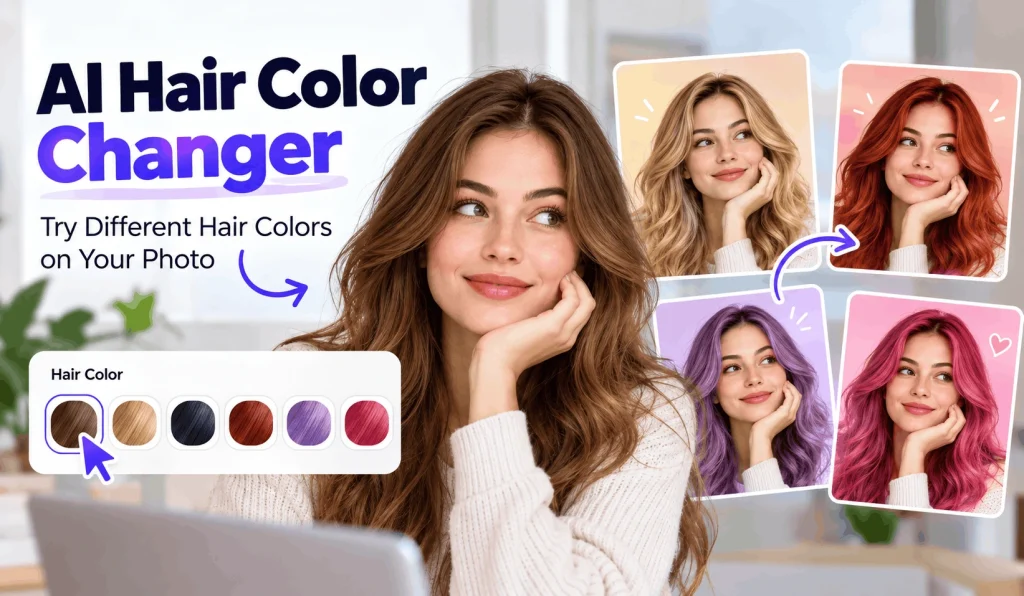
Thinking about changing your hair color but worried you might regret it? We've all seen a gorgeous hair shade on someone else and wondered, "Would that actually look good on me?"
An AI hair color changer helps answer that question before you reach for the hair dye. These tools let you upload a photo, experiment with different shades, and preview how a new color might complement your appearance.
Whether you're considering a subtle chocolate brown, a bright copper red, or something adventurous like pastel pink, virtual hair color tools make experimenting much easier.
The best part? You can explore different looks without changing a single strand of your actual hair.
An AI hair color changer is a digital tool that uses artificial intelligence to modify the appearance of hair color in photos.
Instead of manually selecting every strand in a photo editor, you can use AI-powered tools to identify the hair area and apply a new shade.
Some tools let you choose from preset colors. Others offer custom color selection, adjustable intensity, or multiple-color effects.
For example, YouCam Makeup offers virtual hair color previews, including single colors, multicolor styles, and ombré effects.
These previews can help you narrow down your choices before visiting a salon. However, they don't guarantee that real hair dye will produce exactly the same result.
The technology might sound complicated, but the experience is usually straightforward.
AI-powered hair color tools analyze an uploaded image, identify the visible hair, and digitally adjust its color.
More advanced systems attempt to preserve natural details such as hair texture, shadows, and lighting.
Here's what typically happens behind the scenes.
The system identifies the hair area and separates it from nearby features, such as the face, clothing, and background.
Accurate hair detection matters because a poorly identified hair boundary can make the result look unnatural.
Once the tool identifies your hair, it applies your selected color.
Depending on the editor, you may choose a natural shade or experiment with something more creative.
Some tools adjust color blending, brightness, and visual details to make the edited hair look more convincing.
Perfect Corp., a developer of AI and augmented reality beauty technology, offers hair color simulations with adjustable blending and coverage.
Still, results vary between tools and photographs. AI can make a convincing preview, but it cannot predict every outcome of real-world hair coloring.
You don't need professional photo-editing skills to get started. Most consumer-friendly tools follow a similar process.
Start with an online hair color editor or mobile application that supports photo uploads.
Look for a tool with clear instructions, useful color options, and transparent pricing.
Choose a photo that shows your hair clearly.
A front-facing picture with balanced lighting usually makes the editing process easier.
Avoid images with heavy filters, excessive shadows, or hair that blends into the background.
Now comes the fun part.
Try a familiar shade first, such as brown or dark blonde. Then explore colors you normally wouldn't consider.
You might discover that copper looks surprisingly good on you. Or you might confirm that neon green belongs in your imagination rather than your next salon appointment.
If your chosen tool supports adjustments, experiment with color intensity, coverage, and blending.
Pay attention to the hairline, loose strands, and areas around your ears.
These details can reveal whether the virtual result looks convincing.
Save your preferred previews if the tool allows downloads.
Compare the images side by side instead of judging each color separately.
You can also show your favorite result to a hairstylist to explain the look you're hoping to achieve.
Several established photo-editing platforms offer virtual hair color features. Their capabilities differ, so the right choice depends on how you prefer to edit your photos.
If you enjoy exploring AI-powered editing tools, check out our guide to the best free AI tools for more creative applications.
Not sure which AI editor suits your needs? Our guide on how to find and compare AI tools explains what to consider before choosing one.
Fotor's AI Hair Color Changer lets users upload photos and preview shades such as blonde, brown, black, and red.
Its official website describes a browser-based editing process, making it useful for people who prefer not to install another app.
Fotor also supports custom color exploration.
Consider Fotor if: You want to try hair colors directly in a browser.
YouCam Makeup offers an AI-powered hair color feature designed for mobile use.
According to its official product page, users can import photos or use a live camera to explore different colors.
The app also supports multicolor and ombré options, along with adjustments for coverage and blending.
Consider YouCam Makeup if: You prefer experimenting with different hair colors on your phone.
Facetune offers virtual hairstyle and hair color editing features.
Its website describes options for modifying hair appearance and refining details such as shine and texture.
This makes it worth considering if you want to explore both color and hairstyle changes.
Facetune advertises a seven-day free trial, but users should review current subscription terms before signing up.
Consider Facetune if: You want broader appearance-editing features alongside virtual hair color changes.
These descriptions reflect information published by the tool providers, not independent performance tests. Free features, account requirements, and download restrictions may change.
Choosing a new hair color depends on personal preference, your existing hair, and the overall appearance you want.
A virtual hair color simulator gives you room to experiment before making a commitment.
Brown and black shades offer options for people who prefer a familiar or understated appearance.
Try chocolate brown, espresso, chestnut, or soft black to compare subtle differences.
Even small changes in tone can create a different overall impression in a photograph.
Blonde includes many shades, from warm honey and golden blonde to cooler ash and platinum tones.
Try several variations rather than treating blonde as a single color.
Remember that achieving certain blonde shades on naturally dark hair may require lightening.
Red offers plenty of variety.
Copper, auburn, burgundy, and deep cherry shades create noticeably different looks.
A virtual preview can help you decide whether you prefer a subtle reddish tint or a more dramatic color.
Want to explore lavender, pink, silver, or blue?
Virtual editing makes it easy to experiment without committing to an unusual hair dye.
You can even explore multicolor effects if the tool supports them.
There's no rule that says your first virtual makeover has to be practical.
A good AI tool helps, but your original photo also matters.
A few simple choices can improve the usefulness of your preview.
Choose a photo with even lighting across your face and hair.
Strong shadows can hide details, while harsh light may change how the selected shade appears.
Fotor specifically recommends comparing photographs taken in natural and indoor lighting.
Avoid covering large sections of your hair with hats, hands, or accessories.
The more clearly the tool can identify your hair, the easier it becomes to create a believable color preview.
Instead of switching immediately from black to bright pink, compare a few related colors.
For example, test chestnut, caramel, and chocolate brown together.
This approach makes subtle differences easier to notice.
Look closely at the hairline and areas where individual strands meet the background.
If the color spills onto your skin or leaves large sections unchanged, consider another photograph or editing tool.
Also, don't mistake a beautiful digital preview for a guaranteed salon result.
Both AI editors and conventional photo filters can change the appearance of hair color, but their editing methods may differ.
| Feature | AI Hair Color Tools | Basic Color Filters |
|---|---|---|
| Hair detection | May identify the hair automatically | May require manual selection |
| Color adjustment | Often includes shade-specific controls | Depends on the editor |
| Texture preservation | Some tools attempt natural blending | Depends on filter quality |
| Multicolor options | Available in selected tools | Varies by application |
| Editing effort | Often relatively simple | May require manual refinement |
A basic filter can work well for quick experiments.
An AI-powered editor may offer more targeted control, especially when it can identify hair boundaries and adjust color blending.
However, neither approach guarantees perfect results.
Some hair color editing platforms offer free previews or free-to-start features.
For example, Fotor advertises a free online virtual hair color tool, while YouCam Makeup offers free hair color try-on features through its app.
However, free access doesn't always mean every feature is free.
A service may charge for premium tools, additional editing options, or certain downloads.
Before using a platform, check whether it requires an account, offers a trial, or has subscription conditions.
That quick check can help you avoid unexpected charges.
You can also explore our collection of free AI applications to discover more AI-powered tools for everyday tasks.
Photo privacy deserves attention whenever you use an online AI editing service.
Your image may contain personal details, including your face, surroundings, or other identifying information.
Before uploading a picture, read the platform's privacy policy and check how it handles uploaded images.
Look for information about data retention, image processing, deletion options, and whether the service uses uploads for improving its systems.
Use photographs you own or have permission to edit.
If you're uncomfortable sharing a personal selfie, consider testing a tool with a permitted sample image first.
Yes, some AI hair editors focus specifically on modifying hair color. However, results can vary, and some image-generation tools may unintentionally change facial details. Always compare the edited image with the original.
Yes. Tools such as Fotor offer free online virtual hair color previews. Check the provider's current terms for any limits on features or downloads.
There isn't one universally best option. Fotor, YouCam Makeup, and Facetune offer different features. The most suitable choice depends on your photo, preferred editing method, and desired colors.
Yes. Browser-based services such as Fotor allow users to upload a photo and preview hair colors online.
Not necessarily. Real results depend on factors such as your starting hair color, previous treatments, dye formulation, and the coloring process. Treat virtual previews as visual references rather than exact predictions.
Changing your hair color can feel like a big decision, especially when you're exploring a shade you've never tried before.
An AI hair color changer offers a convenient way to experiment with different looks, compare shades, and gather inspiration before visiting a salon.
Whether you prefer a natural brunette look, warm copper tones, or something completely unexpected, virtual hair color tools let you explore those ideas without touching your actual hair.
Start with a clear photo, compare several colors, and pay attention to how realistic the results look.
A little experimentation now could help you make a more confident choice later. And if your virtual purple hair turns out to be a terrible idea? At least it only takes another click to change it.

Ever spent 20 minutes searching for an AI conversation that took only two minutes to write? You’re not alone in […]
Read article →
What beats a rock? If you grew up playing Rock Paper Scissors, your first answer is probably paper. But what […]
Read article →
Ever asked Grok a question and watched it mention your city without you telling it where you live? That’s enough […]
Read article →